A very large screen for tracking, planning, training plans and results for tennis students. Sections are separated into tabs.
Tracker
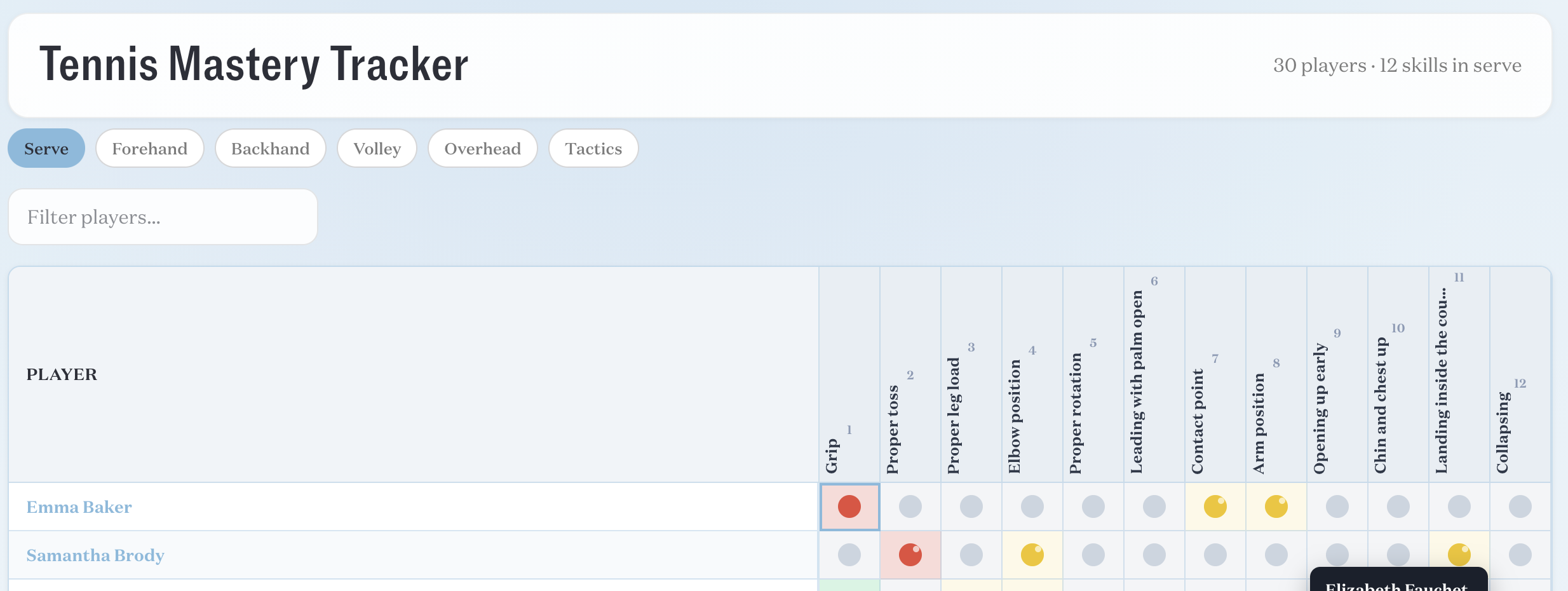
Tennis skills are separated into categories viewable via toggle buttons. Skills: Serve, Forehand, Backhand, Volley, Overhead, Tactics. Tactics includes subfiltering: all tactics, shot selection, returns, transition to the net, plus more.
Each subskill has a four possible values: not assessed, needs work, near mastery, and mastery
A search bar allows filtering by student name.
Curriculum
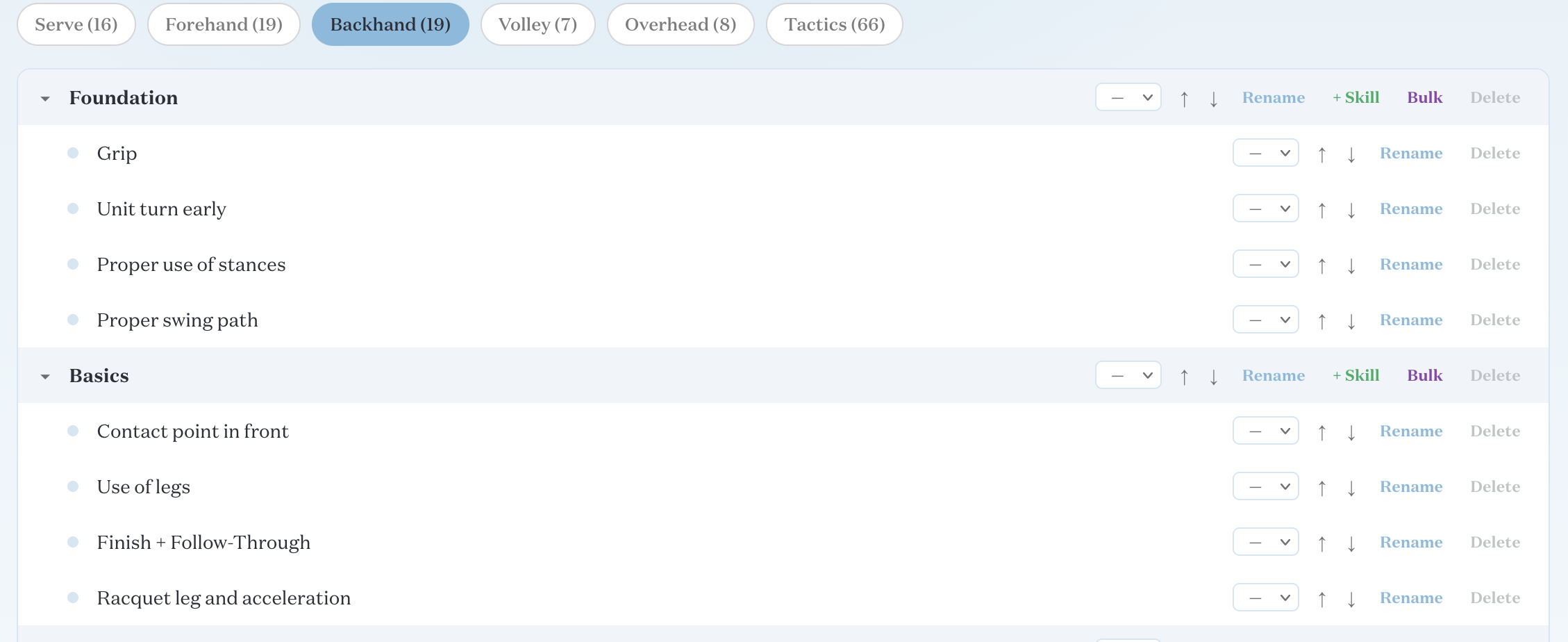
For each skill (Serve, Forehand, etc.), an outline showing what to work on, sorted into categories.
There are no detailed view for any of things to work on. The option exists to add a 1-10 priority to any curriculum item, but prioritization is not being used.
Coach Planner
This is a three-stage
Stage 1: Check boxes to check every single player name, marking daily attendance.
Stage 2: Screen to select how many tennis courts are available
Stage 3: Generate a plan that groups students together around courts, grouping based on skill level.
Drill Library
Same UI as the Curriculum screen, with similar content. (What separates a drill from a curriculum?). Many-to-many relationship appears to exist between a curriculum skills and the appropriate skills. Details of drill information can only be seen by clicking the edit buttons to open the edit modal.
Users have the ability to add images and videos. These features have not been used.
This section has a search bar to search for skills. Skills can be exported to CSV. CSVs can also be uploaded. Unknown if uploading a CSV appends of overwrites.
Lesson Plans
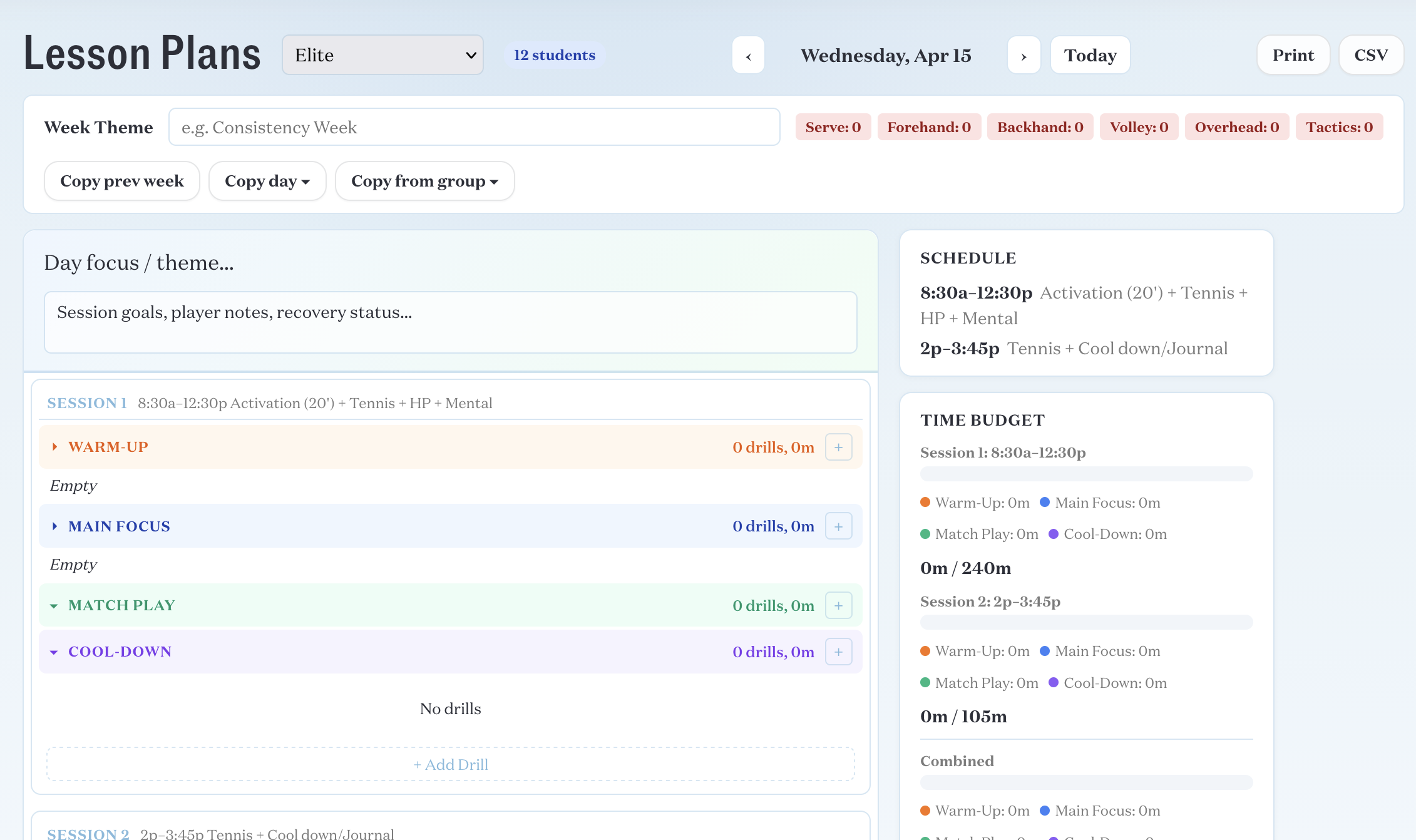
This section appears not to be in use. Large amounts of data could be stored, including the weeks theme, the day’s theme, multiple sessions per day, drills per session, sorted per group (Elite, Forge Next Gen, etc.) Teachers and students cannot be added to lessons. Lessons belong only to groups.
Analytics
Specifically drill analytics. Shows of all the existing drills, which have been assigned, which completed, and which skipped, plus some aggregated stats. Are these analytics useful?
All Groups
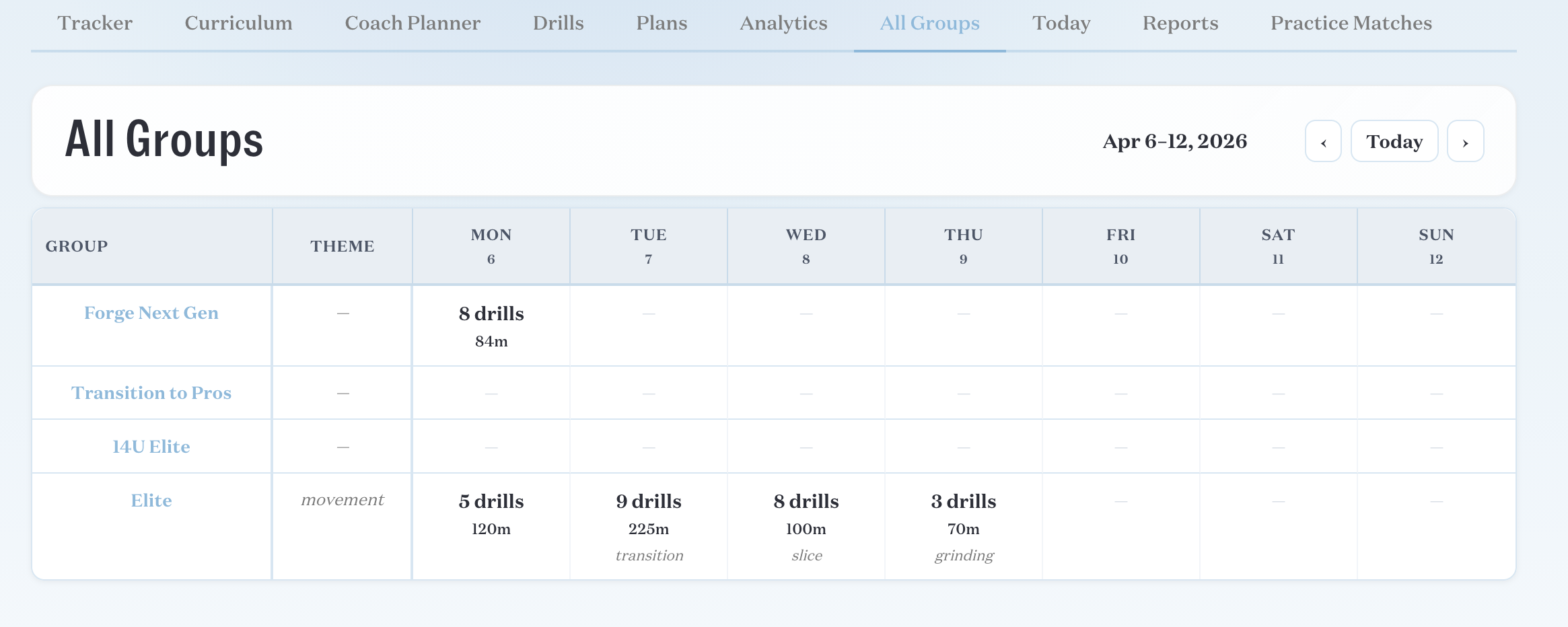
Shows per week, how many drills have been assigned per day per given group. Nothing can be clicked through. Data cannot be assessed. Is this screen useful?
Today
If you select a group, it will show you any activities occuring that day, pulled from an unknown calendar. TO DO: Find this Calendar.
Reports
Allows a tennis admin to create post-tournament reports for players. For each tournament, click to view a list of players, and then view, edit, or create a report.
Users can search by tournament name and filter by coach and/or date range.
Clicking on a tournament goes to a new screen showing which students competed. Report has three sections: What student did well, areas for improvement, and overall. Each report section is built using a simple HTML-5 text editor (no embeds, images, etc. available in the editor, but will HTML tags work? Is input sanitized?)
Reports can be converted to PDFs for printing.
Practice Matches
Very cluttered UI with forms to log and archive of logs on the same screen. The archive loads every practice match without pagination, leading to too much scrolling.
Clicking a match brings up an edit modal that is similar but distinct from the create a practice match pane. Cannot view details outside of the edit window.
Toggle buttons for match logs, practice rankings, and range analysis. Clicking on a student’s name opens up a student specific page devoted to practice ranking stats (not the SIS page for the student).
The rankings list can be filtered by group and sorted by various ranking measures. Range analysis is pre-fabricated analytics that cannot be configured by the user. Again, no pagination.